
You may receive the “Excel found unreadable content in filename.xlsx” error when opening the Excel file after updates. It often occurs when Excel fails to read the file, its objects, or content. You can face this error when opening a new Excel file in an older version of Excel application.
The error directly indicates some issue with the file. It is corrupted or has compatibility issues. However, there might be several other reasons that may cause this error. In this write-up, we will learn the causes of the error and the troubleshooting methods to resolve it.
To repair the Excel file quickly and smoothly, we have also mentioned an advanced Excel repair tool.
What triggers the Excel to throw Excel Found Unreadable Content” Error?
The ‘Excel found unreadable content in xxx.xlsx. Do you want to recover the content of this workbook’ error can occur due to one of the following reasons:
- Corruption in Excel file.
- Objects within the Excel file, such as macros, tables, pivot tables, charts, formulas, modules, forms etc., are corrupted.
- The Excel file is not compatible with your Excel version.
- You try to open the file with an incorrect extension.
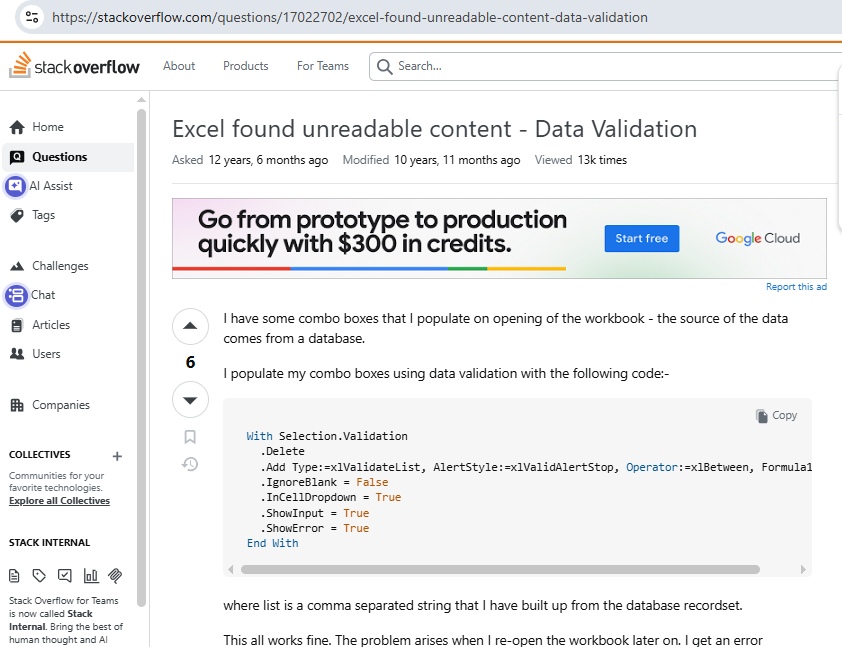
- Using a data validation source string that exceeds the 225-character limit.(If opening file using VBA)
- Missing Visual Basic Component (In Office 2010)
Methods to Resolve the “Excel Found Unreadable Content” Error
The “Excel found unreadable content” error can occur when you’re trying to open an Excel file via VBA. It usually occurs when the code, or macros in the worksheet is corrupted. The corruption in VBA often occurs due to the data validation in Excel if the data validation source property exceeds its limit.
To resolve this, you press Alt + F11 simultaneously. In Visual Basic Editor, you can check the VBA code and make sure you use dynamic combo boxes instead of static. If the error occurs while opening the Excel file normally, then follow the below troubleshooting solutions:
Method 1: Install Visual Basic Component in Office 2010
You can face “Excel found unreadable content” error while opening the Excel file in Office 2010. It usually occurs when the Visual Basic Component is corrupted or missing. In such a case, you can install Visual Basic Component using the following steps:
- From your system’s Control Panel. Click Programs and then Microsoft Office 2010.
- Select ‘Change’ and then click ‘Add or Remove Programs.’
- Find ‘Visual Basic Applications’ and right-click on it.
- Click ‘Run from my Computer’ and hit the ‘Continue’ button.
- Reboot your computer when the process is complete.
Method 2- Make the File Read-Only
If you fail to open the Excel file, then make the file read-only. This lets you open it safely and copy the contents into a new file. To do so, follow the below cited steps:
- Open your Excel file and click on the File menu.
- Click on Save As and then select the location.
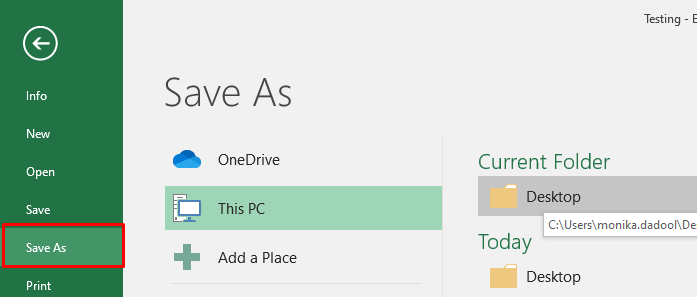
- In the ‘Save As’ dialog box, click Tools and then click General Options.
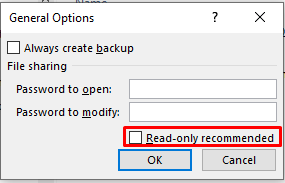
- In the General Options dialog box, select the checkbox named ‘Read-only recommended’ to make the file read-only, and then click OK.
- Open a new file and then copy the content from the corrupted Excel file to the new file.
- Now save the file and then try to open it again. If the error “Excel found unreadable content” error persists then follow the next solution.
Method 3: Change the Default File Format
If you try to open the Excel file with an incompatible extension, you may get the “Excel found unreadable content” error. To fix the issue, you can try changing the file format. Follow the steps below:
- Open your Excel application.
- Go to the File menu and then click on Options.
- In the Options window, under the Save workbooks option, click on the “Save files in this file format.”
- Choose a supportable file format as per your Excel version.
Method 4: Repair Your Excel Workbook
The Excel usually fails to read the content in the workbook due to corruption. To repair it, you can use the Open and Repair utility. It is a built-in tool in Excel to repair and restore the corrupt Excel files. To use this utility, the steps are as follows:
- In the Excel application, navigate to File and then click Open.
- Select the affected workbook in the Open dialog box.
- Click on the arrow next to the Open option and from the dropdown options, select Open and Repair.
- A dialog box will appear with following three options:
- Repair
- Extract Data
- Cancel

- If you click on the ‘Extract Data’ option, will help you recover the workbook data without formulas and values. And the ‘Repair’ option will help you recover maximum data possible. Choose one of the options and wait till the process is completed.
This built-in tool can help you resolve the corruption-based errors, including Excel found unreadable content, but it has a few limitations like
- It may not repair the severely corrupted Excel file
- To repair a large-sized Excel file with complex values, it is a time-consuming process.
- It will not allow you to preview the repaired data before saving.
- It is not effective in fixing complex corruption-related errors in Excel files.
If you face such scenarios where this tool does not provide you the desired outcomes, you can opt for a professional Excel repair tool. The Stellar Repair for Excel is one suitable tool, you can use to repair large-sized Excel files, even if they are highly corrupted. Also, it allows you repair multiple Excel files in a single go, which saves time and effort.
To Conclude:
Excel application may fail to read the corrupted Excel file and display “Excel found unreadable content” error. To resolve this error, you can follow the troubleshooting methods discussed in the above article. The corruption in Excel file is one of the major reasons for this error, you can use a reliable Excel repair tool, such as Stellar Repair for Excel. It will ease the repairing of corrupt Excel file and recover all the data from it with no data loss.
