
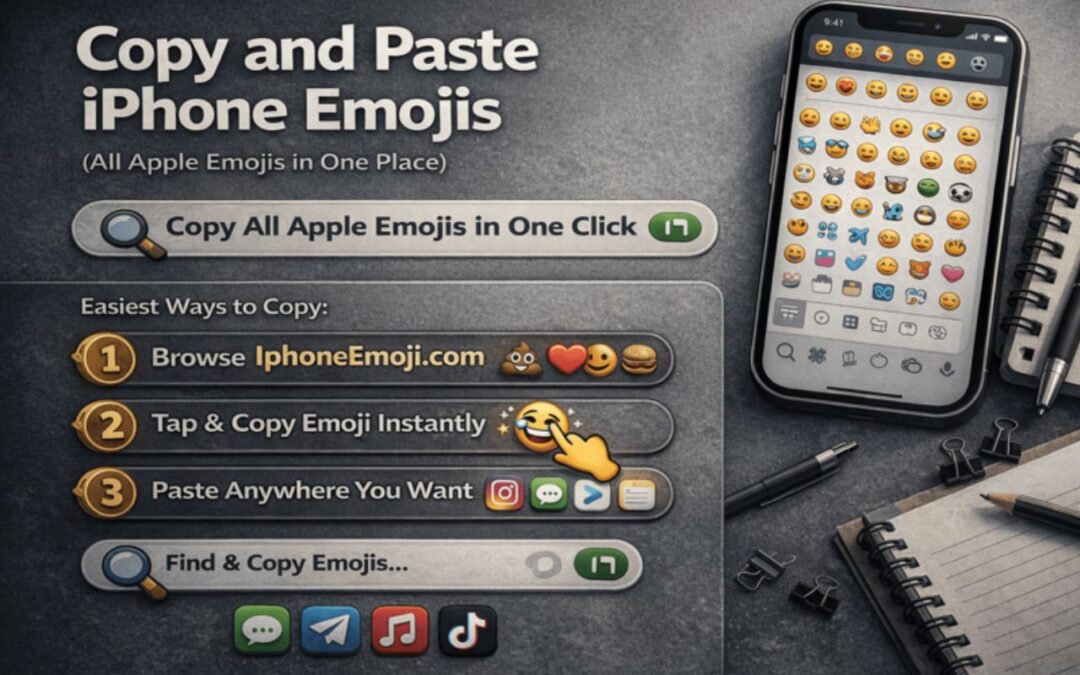
Emojis are the fastest way to add tone, personality, and clarity to short messages. But searching through the iPhone emoji keyboard every time you need the perfect icon can get annoying—especially if you’re building an Instagram bio, writing captions, formatting a TikTok comment, or preparing a consistent “brand style” for your posts.
This guide shows you the most practical way to copy and paste iPhone emojis instantly, how to organize them for daily use, and how to avoid common emoji issues (like blank squares, missing emojis, or inconsistent appearance across devices).
Best Sites to Copy & Paste iPhone Emojis (All Apple Emojis in One Place)
If you want all Apple-style emojis in one place with quick copy/paste, these resources are worth bookmarking:
1. IphoneEmoji.com
A clean, fast iPhone-focused emoji library where you can find an emoji in seconds, copy it instantly, and paste it into messages, captions, bios, and social posts.
2. Emojipedia
One of the most detailed emoji references for meanings, new emoji updates, and Apple vs Android emoji previews.
3. Unicode Emoji Charts – https://www.unicode.org/emoji/charts/
The official emoji standard charts document new emoji characters and sequences.
4. GetEmoji.com
A simple copy/paste emoji page that’s useful when you want quick access without extra details.
5. CopyChar.cc
A handy tool for copying symbols and emojis across platforms, including rare characters.
6. EmojiDB.org
A searchable emoji database with tags and categories for browsing.
Why “Copy & Paste iPhone Emojis” Is So Popular
The iPhone emoji keyboard is great for casual texting, but it’s not designed for heavy use. The moment you start using emojis in your workflow, copy/paste becomes the superior option. Here are the most common reasons people prefer copy/paste emoji lists:
- Speed: copy an emoji in one click instead of hunting through categories
- Consistency: reuse the same emoji style in every caption or template
- Better formatting: build emoji “lines” and layouts for bios and highlights
- Business messaging: customer support templates look friendlier with the right emoji
- Creator workflows: streamline YouTube descriptions, TikTok captions, and comment replies
In short: the more you use emojis, the more you benefit from a single “emoji library page” that’s ready to copy and paste instantly.
Where You Can Paste iPhone Emojis
Once copied, iPhone emojis work almost everywhere you can type text. Most modern platforms support emojis natively, including:
- Messaging apps: iMessage, WhatsApp, Telegram, Messenger, Discord
- Social apps: Instagram, TikTok, X (Twitter), Facebook, Snapchat
- Work tools: Slack, Notion, Trello, Google Docs
- Video platforms: YouTube titles, descriptions, and pinned comments
- Websites: headings, CTA blocks, FAQ sections, feature lists
If you’re using emojis for marketing, the biggest benefit is visual scannability—emojis help people read faster and understand the tone in a second.
How to Copy & Paste Emojis on iPhone (Fast Methods)
Method 1: Copy from an emoji list website
- Open an emoji library page (like IphoneEmoji.com)
- Tap/click the emoji you want
- Copy it
- Paste it into your message, caption, or bio
This is the best method for creators and anyone who uses emojis daily.
Method 2: Copy from the iPhone emoji keyboard
- Insert the emoji into Notes or Messages
- Press and hold to select the emoji
- Tap Copy
- Paste it anywhere
This works, but it’s slower because the emoji keyboard isn’t optimized for bulk copying.
Method 3: Save emoji sets in Notes for reuse
Create a Note called “Emoji Templates” and save:
- your favorite emoji combos
- caption formats
- support reply templates
- bio layouts
Then you can copy entire lines at once instead of copying emojis one-by-one.
Emoji Categories You’ll Use Most (Practical Breakdown)
A complete Apple emoji library usually follows iPhone keyboard categories. The trick is knowing which categories are most useful for real posting, messaging, and formatting.
| Category | Best For | Typical Uses |
|---|---|---|
| Smileys & Emotion | tone + reactions | humor, sarcasm, support messages, quick replies |
| People & Body | human context | gestures, applause, “me”, “you”, reactions |
| Animals & Nature | aesthetic + vibe | seasonal posts, cute captions, mood boards |
| Food & Drink | lifestyle content | restaurants, recipes, travel, casual updates |
| Activities | hobbies + sports | gym, gaming, events, daily routines |
| Travel & Places | location storytelling | vacations, plans, “meet me here” energy |
| Objects | features + lists | product lists, tools, “what I use” posts |
| Symbols | structure + emphasis | bullets, arrows, status markers, UI-style labels |
| Flags | identity + geography | country references, travel, international content |
If you’re using emojis for content creation, the Symbols category is often underrated. It’s the best category for building clean layouts in bios and captions.
Best Emoji Combos You Can Copy & Paste
Single emojis are fine, but emoji combos are what make captions and bios look “designed.” Here are reliable sets you can reuse in multiple contexts.
For Instagram / TikTok Bios
- ✨ New posts every week
- 📍 Based in (your city)
- 📩 Collabs: DM me
- 🔗 Links below
For YouTube Descriptions
- ✅ Subscribe for more
- 🔥 Best moments
- ⏱️ Timestamps below
- 📌 Pinned comment has links
For Business Messages / Support Replies
- Thanks for reaching out! ✅
- We’re checking this now 🔍
- Problem solved 🎉
- Anything else I can help with? 🙂
For Aesthetic Captions
- 🌙 late night thoughts
- ☁️ soft days
- 🌿 calm energy
- 🖤 simple and clean
Tip: Save these in Notes and reuse them across platforms for consistent branding.
How to Make Emojis Look Better in Captions
Most emoji mistakes come from overuse. Emojis work best when they guide the reader, not when they flood the message.
Use emojis as “visual punctuation.”
Instead of adding emojis randomly, place them where your sentence naturally pauses:
- Good: New video is live 🎥 Link in bio
- Too much: 🎥🔥✨ NEW VIDEO ✨🔥🎥 LINK 🔥✨
Keep emoji style consistent
Pick a theme and stick to it:
- Minimal: ✅ 🔗 📌
- Aesthetic: ☁️ 🌿 🌙
- Energy: ⚡🔥🚀
Use emojis to structure lists
This is one of the best uses for emojis in marketing content:
- ✅ Easy to use
- ✅ Works on all devices
- ✅ Copy & paste ready
Why Emojis Sometimes Show as Boxes or Question Marks
If you’ve ever pasted a new emoji and someone else sees a blank square, it’s almost always a compatibility issue. Common causes:
- Older iOS version: the device doesn’t support that emoji yet
- Older Android device: emoji standards differ by update cycle
- Web fonts: some browsers render emojis differently
- App rendering: certain apps have custom emoji support
Practical solution: if you’re posting publicly and want maximum compatibility, stick to widely supported emojis or avoid very new characters until most users catch up.
How to Search Emojis Like a Pro (Without Scrolling)
Even if you use copy/paste lists, it helps to know how to find emojis quickly on iPhone.
Use iPhone emoji search
Open the emoji keyboard and type a keyword like:
- “heart”
- “fire”
- “star”
- “laugh”
Use Text Replacement for your favorite emojis
This is one of the most powerful iPhone features for emoji workflows.
- Go to Settings → General → Keyboard → Text Replacement
- Create shortcuts like:
- ;ok → ✅
- ;link → 🔗
- ;pin → 📌
- ;new → ✨
Now you can type “;link” and instantly get 🔗 without searching anything.
Emojis for Work vs Emojis for Social Media
Not all emojis belong everywhere. A clean emoji strategy depends on context.
Best emojis for professional messaging
- ✅ confirmation
- 📌 priority
- 🔍 investigation
- 📩 contact
- ⏳ waiting / in progress
Best emojis for captions and engagement
- 🔥 hype
- 😂 humor
- ✨ highlight
- 💯 approval
- 🥹 emotion
If you want your message to feel “clean,” prioritize structure emojis (✅ 📌 🔗) over reaction emojis (😂🔥💀).
FAQ
1. Can I copy and paste iPhone emojis into any app?
Yes. Emojis are standard characters, so you can paste them into most messaging apps, social networks, and documents.
2. Why do emojis look different on Android or Windows?
Emoji characters are standardized, but each platform draws them in a different style. The meaning is the same, but the design may vary.
3. What’s the fastest way to reuse the same emojis every day?
Save emoji combos inside Notes, or create Text Replacement shortcuts for your most-used emojis.
4. Why can’t some people see the newest emojis?
Their device or OS version may be outdated and doesn’t yet support the newer emoji set.
